



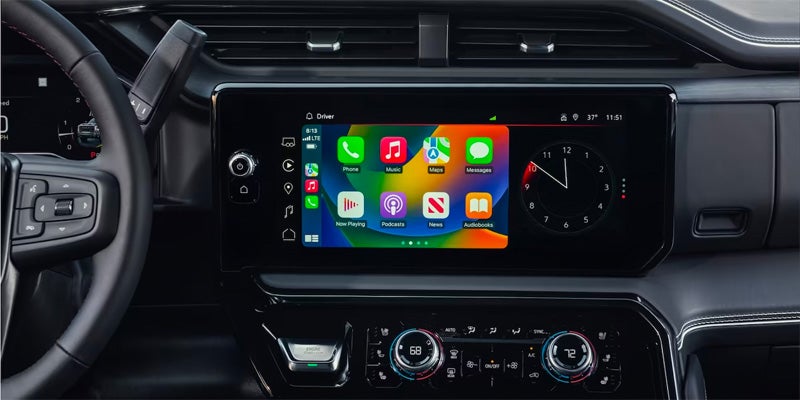
GMC vehicles are equipped with the advanced IntelliLink infotainment system, designed to enhance your driving experience by seamlessly integrating technology and connectivity. Whether you’re a new GMC owner or looking to maximize your vehicle’s features, understanding how to navigate IntelliLink can significantly improve your time on the road. Here are some essential tips to help you get the most out of your GMC IntelliLink system.
Getting Started with GMC IntelliLink
When you first enter your GMC vehicle, the IntelliLink system greets you with a user-friendly interface. To begin, ensure your vehicle is in park and the ignition is on. The home screen displays various icons, including audio, navigation, phone, and settings. Familiarizing yourself with these icons is the first step toward mastering IntelliLink.
Connecting Your Smartphone
One of the standout features of IntelliLink is its ability to connect with your smartphone. Here’s how to set it up:
- Bluetooth Connection:
- Enable Bluetooth on your smartphone.
- On the IntelliLink screen, navigate to the “Phone” icon.
- Select “Pair Device” and follow the on-screen instructions.
- Apple CarPlay and Android Auto:
- For Apple devices, connect your iPhone using a USB cable and select the CarPlay option.
- For Android devices, connect via USB and select Android Auto. This integration allows you to access apps, navigation, and music directly from the IntelliLink interface.
Customizing Your Experience
IntelliLink offers various customization options to tailor your infotainment experience:
- Personalized Home Screen: You can rearrange the icons on your home screen to prioritize your most-used features. Simply press and hold an icon to move it to your desired location.
- Favorite Contacts: Save your frequently contacted numbers for quick access. Go to the “Phone” menu, select “Favorites,” and add contacts for easy dialing.
- Audio Preferences: Adjust your audio settings by accessing the “Audio” menu. Here, you can choose your preferred sources, such as AM, FM, SiriusXM, or Bluetooth audio.
Utilizing Navigation Features
The IntelliLink system includes built-in navigation capabilities that can simplify your travel:
- Voice Commands: Use voice recognition to input destinations hands-free. Simply press the voice command button on the steering wheel and say, “Navigate to [destination].”
- Points of Interest: Easily find nearby restaurants, gas stations, and attractions by selecting the “Points of Interest” option within the navigation menu.
- Real-Time Traffic Updates: Stay informed about traffic conditions. IntelliLink provides real-time updates, helping you avoid delays and find the fastest routes.
Staying Updated
To ensure your IntelliLink system operates smoothly, keep it updated:
- Software Updates: Regularly check for software updates through the settings menu. Updates can enhance functionality and fix any bugs.
- Map Updates: If your vehicle includes navigation, ensure your maps are current. You can update maps via USB or through the GMC website.
Navigating the GMC IntelliLink infotainment system can transform your driving experience, making it more enjoyable and efficient. By connecting your smartphone, customizing your settings, utilizing navigation features, and keeping your system updated, you can fully leverage the capabilities of your GMC vehicle. Embrace the technology at your fingertips and enjoy every journey.
Connect with us

